


ACDSee Gemstone Photo Editor is packed with features to help you take control of your editing workflow and enhance your photos with ease.
Learn more about these features below.


Artificial Intelligence (AI) Filters
NEW AI Denoise
AI Denoise uses advanced machine learning to automatically target pixelated noise while preserving critical detail. Instantly refine high-ISO images or shots taken in challenging lighting to maintain a natural, sharp, and professional finish. AI Denoise ensures your photos remain clean, detailed, and true to life.
ACDSee AI Super-Resolution
Explore new dimensions of detail with ACDSee AI Super-Resolution. This intelligent technology enhances images by upscaling them while reducing noise and blurriness, eliminating artifacts, and preserving details. Experience sharper contrast and enhanced clarity as it refines every pixel. Whether you’re preparing images for large-scale printing, reviving old memories, or giving low-resolution shots a second life, AI Super-Resolution ensures your visuals are ready to reach for the stars.
IMPROVED AI Face Edit
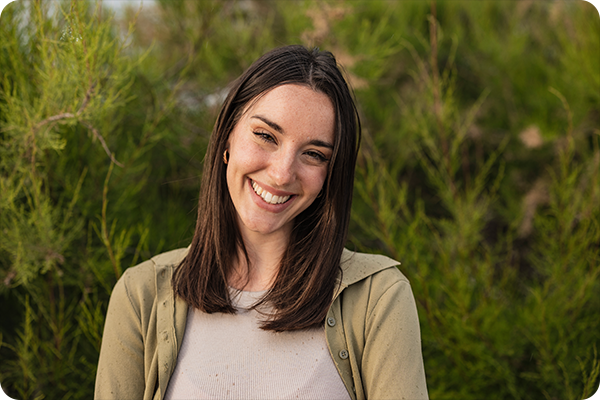
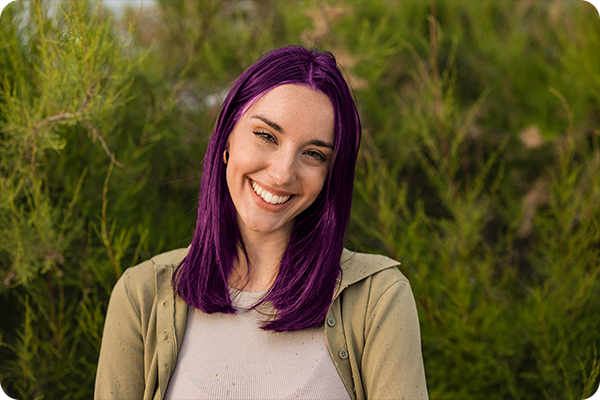
Effortlessly make retouching portraits feel intentional, not artificial. Enhance natural beauty or completely alter facial parameters using the tools in AI Face Edit that you already know and love – like skin smoothing, eye and eyebrow adjustments, nose contouring, teeth whitening, and more. Control hair color and clarity with adjustments for Temperature, Tint, Saturation, and more in the new Hair Group. Options for natural and unnatural hair colors give you full creative freedom to remain organic or push past societal norms. Easily blend out blemishes, not texture, with the Splotch Removal tool added to the Skin Group.
IMPROVED AI Face Edit
Effortlessly make retouching portraits feel intentional, not artificial. Enhance natural beauty or completely alter facial parameters using the tools in AI Face Edit that you already know and love – like skin smoothing, eye and eyebrow adjustments, nose contouring, teeth whitening, and more. Control hair color and clarity with adjustments for Temperature, Tint, Saturation, and more in the new Hair Group. Options for natural and unnatural hair colors give you full creative freedom to remain organic or push past societal norms. Easily blend out blemishes, not texture, with the Splotch Removal tool added to the Skin Group.

AI Sky Replacement
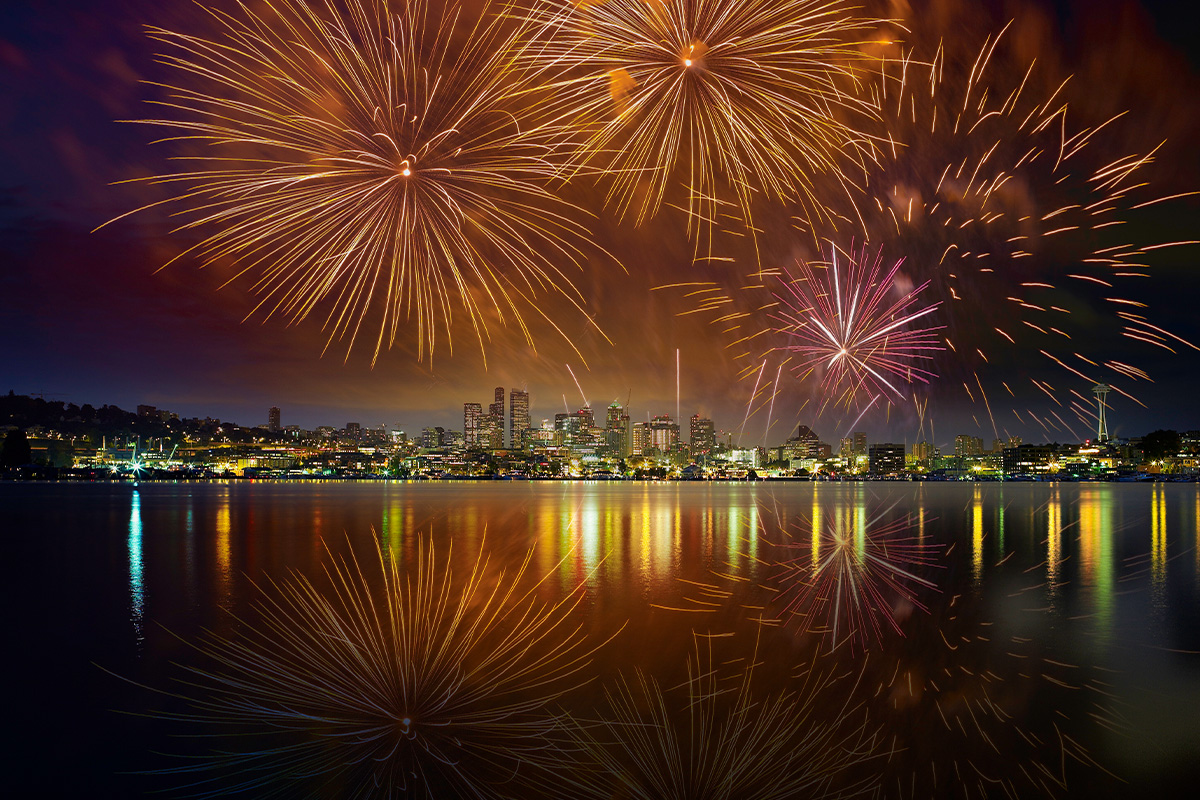
Venture beyond the horizon with AI Sky Replacement. Redefine your landscape with ease by swapping out the sky in any photo, achieving a seamless and natural look. Explore an array of pre-installed skies or import an original shot to turn your grandest visions into epic realities. Give your skies a moody tone, or liven up your night skies with colorful, illuminating displays.
Artificial Intelligence (AI) Selection Tools
Non-Destructive AI Masking
Save countless hours editing your images, including RAW files, with the Artificial Intelligence (AI) masking tools. Use AI Sky, AI Subject, and AI Background to quickly select skies, subjects, and remove backgrounds with a single click. These selection masks allow you to easily edit specific parts of your photos, while preserving the original file, to truly bring out the best in your photos non-destructively.
Non-Destructive AI Object Masking
Effortlessly select and isolate objects—even in RAW images—by simply outlining them. Then, let AI take the controls, precisely mapping your selection so you can focus on the creative voyage ahead.
Masking Panel
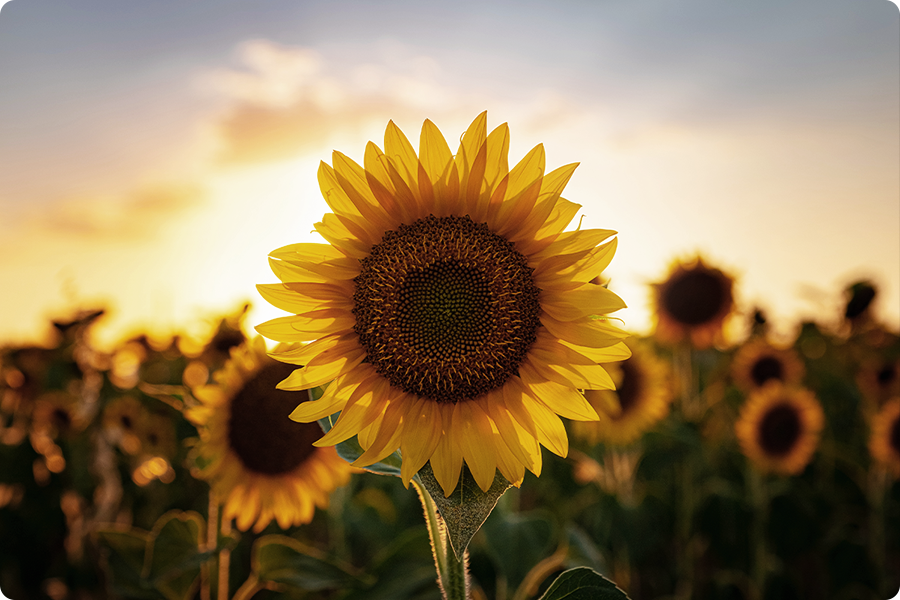
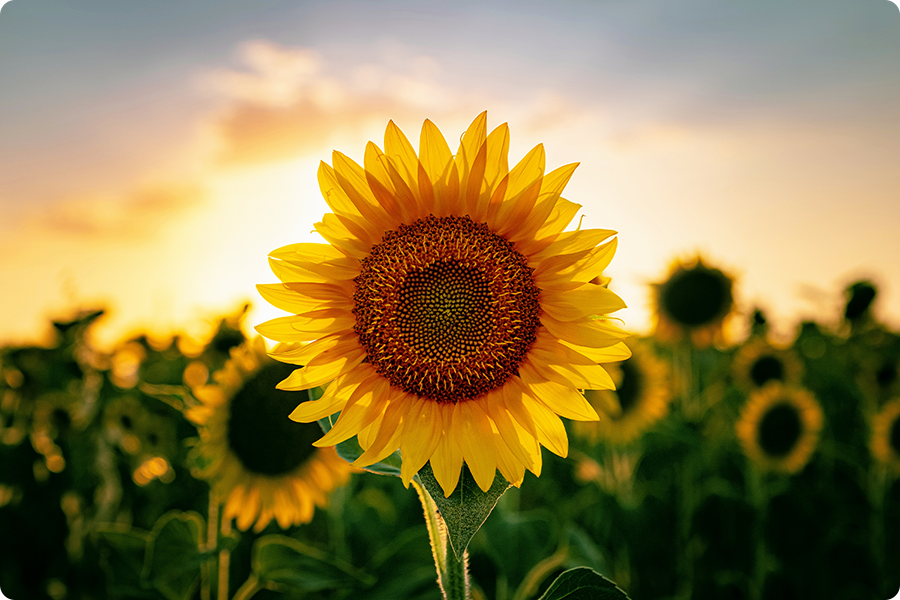
Keep all your ACDSee RAW selection masks in one convenient place! The masking panel includes options for duplicating, converting, copying and pasting selection masks that will make organizing your masks easier to do than say. Refine selection masks using Feathering and Shift options for easy blending, expanding, and contracting.
IMPROVED AI Actions
The AI Actions panel houses helpful one-click selection and editing features: AI Select Subject, AI Select Sky, AI Select Background, AI Remove Background, AI Blur Background, AI Black & White Background, and new AI Hair. The AI gives you precise edges when selecting your subject and masks with significantly fine details.
AI Object Selection Tool
Roughly outline multiple objects you would like to select and let AI do the rest. The AI Object Selection tool will automatically create precise selections around the objects that were outlined, saving you both time and the need to manually cut-out objects.
Photomerge Tools
Panorama Stitching
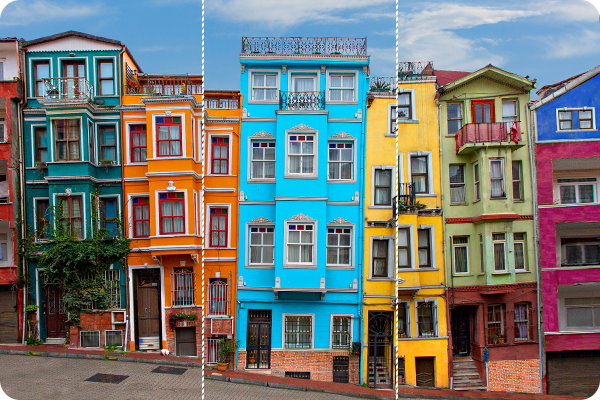
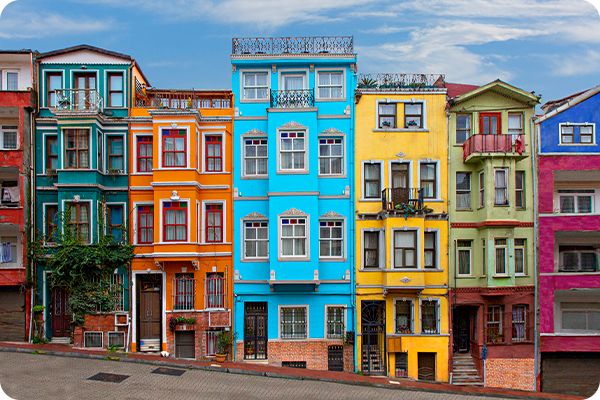
Combine a sequence of smaller photos into one wide panoramic shot. Use options like remove vignetting to clean up the edges where the photos meet.
High-Dynamic Range (HDR)
Flexible and powerful HDR tool for producing high-quality merged images. Run High-Dynamic Range (HDR) on a series of images with different exposures to produce a single image with detail throughout the highlights and shadows.
Focus Stacking
Combine a series of images with different focal lengths to create an image with a greater depth of field.
Selection Tools
Non-destructive Color and Luminance Range Masking
Use Color and Luminance Ranges to chart the most vivid hues and deepest shadows in your image. Illuminate the fiery glow of a sunset or amplify the depth of a shadowed forest and craft a visual adventure that captures every nuance of color and light.
Channel Selection
Make selections and masks based on the image’s Color Information Channels.
Pixel Targeting
Make pixel perfect selections of distinct tones, color, and skin tones using Luminance and Color ranges. The brighter a pixel is, the stronger a selection will be on that pixel.
Polygon Selection Tool
Select any part of your image manually using the Polygon Selection Tool.
Refine Selection
Use Refine Selection to shift or soften edges which can maximize the effect of tools like Smart Erase.
Layered Editing Tools
Layer Masks
Build composite images using layer masks. Apply a layer mask to parts of an image so the layers under it show through. Copy and paste your masks on other layers, including adjustment layers.
Adjustment Layers
Use adjustment layers to change exposure, levels, curves, white balance, split tone, and more.
Layer Blend Modes & Opacity
Choose from 25 layer Blend Modes, like Overlay and Multiply, and adjust the opacity of that layer to affect your final image.
Layer Effects
Add inner glow, shadows, a bevel, an outline, or blur between your image and text layers.
Multi-Select Layers
Pull groups of images into the Layers pane and select one, some, or many.
Align & Blend Layers
Auto-align or auto-blend layers of images taken in a burst to achieve one optimal version of the subject.
Frequency Separation
Separate your image into high frequency and low frequency layers to remove imperfections while retaining detail.
Canvas Resize
Resize the canvas to expand around your layered content or add solid backgrounds for limitless photo manipulations.
Repair Tools
Smart Erase
Brush over unwanted objects with the Smart Erase tool and watch them disappear instantly. The Smart Erase tool fills in the area naturally.
Heal
Remove image flaws using the Healing Brush on complicated textures like skin or fur.
IMPROVED Clone
Remove image flaws using the Cloning Brush for strong, simple textures or uniform colors. Align lines, patterns, and shadows accurately before committing changes for more intuitive editing.
Blended Clone Tool
Use the Blended Clone tool to copy pixels from a source area to a target area. The software analyzes the pixels in the target area and blends them with the copied pixels for the most seamless repair yet.
Red Eye Tool
Automatically remove red eyes from the faces in your photos.
Dehaze
Restore contrast, detail, and lost color to your images. This tool is especially useful for images that have been captured through a haze.
Liquify
Retouch images by moving pixels, not changing them, for limitless photo manipulations.
Flip
Mirror your images either vertically or horizontally.
Rotate & Straighten
Rotate your images at preset or custom angles, or adjust the horizontal angle of your image using the Straighten tool. You can save your settings as a preset for future use.
Sharpen
Sharpen your photos by enhancing medium and high contrast edges.
Noise Reduction
Reduce noisy artifacts in your images and adjust using Luminance and Tone sliders for greater results.
Skin Tune
Use the Skin Tune tool to even tone and restore glow in your subjects, as well as brighten and smooth.
Chromatic Aberration
Heal colored fringes on the borders of high contrast areas with the Chromatic Aberration tool.
IMPROVED Lens Correction
Automatically correct barrel and pincushion distortion by applying the fix calibrated for the distortion inherent to the lens you used. More lenses have been added to the supported Lens types.
Distortion Correction
Correct barrel, pincushion, and fisheye distortion in your photos.
Perspective Correction
Easily adjust the perspective of your photo so large or far-away objects are the correct size.
Crop Tool
Use the Crop tool to remove unwanted parts of your images, or to reduce the image canvas to a particular size.
Clarity
The Clarity tool adds subtle definition to the details in your image. Use it to enhance the contrast of midtones in your images, without overpowering the shadows and highlights.
Color Correction Tools
Color Wheel
Select a range of colors using the Color Wheel and completely change the Hue, Saturation, Brightness, and Contrast. Perfect your color selection even further by adjusting the selected color saturation range.
Tone Wheels
User-friendly tone wheels make split-toning highlights, midtones, and shadows easy.
Color EQ
Use the Color EQ (hue, saturation, contrast, and brightness) tool to adjust overall colors in your image or each color individually. The advanced tools can subtly fine-tune and enhance colors, or completely change individual colors in your images.
White Balance
Choose from a variety of Presets, Auto, or Custom settings to be applied over the entire image or adjust the Temperature and Tint of a selection using the brush or linear/radial gradient application tools.
Curves
Change the tonal range of your image using the Curves tool. Select the RGB color channel to adjust the entire range of the image, or select a specific color. You can also delete points on the Tone Curve, giving you full control.
Color Look-Up Tables (LUTs)
Use built-in Color LUTs to seamlessly color grade your images, or import and apply LUTs as non-destructive filters.
Saturation & Vibrance
Adjust your image’s color saturation. Use the Vibrance tool to adjust saturation without affecting skin tones.
Advanced Black & White Adjustments
In Black & White mode, increase or decrease the contrast of each individual color, and specify the brightness range that the contrast adjustment will target.
Split Tone
Split Tone allows you to customize the tones of the highlights and shadows in your image.
Lighting Tools
Light EQ™
Adjust areas in your image that are too dark or too light, without affecting other areas of the photo. You can also simultaneously brighten dark areas that are too dark, and darken areas that are too bright.
Dodge & Burn
Use the Dodge and Burn tool to lighten or darken areas in your photo without affecting other areas. The tool is often used to lighten underexposed areas or darken overexposed areas.
Auto & Manual Levels
Precisely adjust the contrast and light levels in your images manually or let Gemstone do it automatically.
Exposure
Automatically or manually adjust the amount of light on your image. Target specific areas using the Edit Brush or Gradient tools to limit where the exposure adjustment occurs.
Contrast
Adjust contrast in specific tones and target precise brightness ranges to bring out contrast details in highlights or shadows.
Creative Tools
Text Tool
Add text horizontally, along a curved path or shape, or within a frame. Customize font, size, color, style, justification, opacity, and much more.
Tilt-Shift
Use the Tilt-Shift effect to create emphasis on specific subjects in your photos, or make your photos look like miniature landscapes.
Special Effects
Instantly transform your photo with special effects that can turn images into a pencil drawing, collage, Bob Ross-style painting, and many more unique looks.
Blur
Apply different types of blur to your entire image or only parts of your image using the brush and gradient tools.
Soft Focus
Achieve the results of a diffusion lens filter by using the Soft Focus tool to reduce harsh lines and intensify colors.
Photo Filter Effects
Apply over 20 different Photo Filter Effects, a Color Overlay, or a Gradient Map to your image. Adjust the blend mode and opacity of the effect for even more artistry.
Grain Tool
Give your images a cool, vintage appearance with the Grain tool. Adding Grain can improve your photos in many ways by giving images some texture and depth. In certain cases of badly focused photos, adding Grain can give your image more detail and even make it easier to view.
Cross Process
Give your photos a retro look using the Cross Process Effect. You can adjust the strength of the effect to achieve a distinct look.
Vignette
Add a vignette and adjust the size, color, and opacity to perfectly complement the mood of your photo.
Vignette Correction
Remove unwanted vignettes created by your camera lens.
Detail
Use the Detail Brush to cumulatively highlight important details in your photo, and remove the emphasis off others.
Performance & Workflow Tools
Multi-Document Interface (MDI)
Have multiple documents open at the same time and use universal tool settings across document tabs. View or edit files in split views or child views.
Fast AI-Powered Performance
Gemstone uses the full might of your Graphics Processing Unit (GPU) for accelerated AI-driven editing. This power boost makes using AI-integrated tools – such as AI Masking, AI Sky Replacement, and AI Super-Resolution – incredibly fast to keep your productivity flowing.
NEW AI Presets
Intelligent, non-destructive style at your fingertips. AI Presets are an absolute game-changer for hobby and commercial photographers alike. The AI analyzes your photo and applies gorgeous adjustments, significantly reducing the time you spend editing. Make your subject pop, correct background lighting, or imprint your authentic style with just a click.
Editing Presets
Choose from a variety of ready-to-use editing Presets to give your image an attractive, distinct and professional look.
IMPROVED RAW File Support
Take full editing control of your images with ACDSee RAW, a non-destructive RAW photo editor built right into Gemstone. ACDSee RAW supports RAW image files from over 750 camera models, as well as many other image file formats.
Watermark Tool
Put your individual stamp on your work using the Watermark tool.
Resize
Resize images to any dimension, following pixels or percentages, along either edge, or as a print size.
History & Snapshots
Keep track of your editing history. Take Snapshots of your edited image along the way. Go back to a previous step or Snapshot at any time throughout your editing process.
Settings Presets
Simplify your photo editing process by saving frequently used editing settings as Presets.
Intuitive Home Screen
Initial screen for starting new projects or for continuing previously opened projects.
Templates
Choose from popular social media, print, and web specs or create your own templates for maximum efficiency.
Customizable Keyboard Shortcuts
Whip through your editing process with customizable hot keys available for every stage of your workflow.
Customizable Workspace
Customize your workspace for enhanced efficiency. You can tear off, move, stack, dock, and hide panes and toolbars so everything is right where you want it.
Local AI Computing
The AI-driven features in Gemstone operate locally, meaning the software does not rely on remote servers to process your images, unlike some competitors. Therefore, you get real-time results when using AI features, and your privacy remains protected.
Compatibility
Enjoy comprehensive support for all of the most popular image formats. Gemstone also provides comprehensive color management.

System Requirements
To activate your software, to validate your subscriptions, or to access online services, you will need a valid email address and an internet connection.
Builds
Product Documentation
Helpful Links
ACDSee Video Tutorials
ACDSee Connect
ACDSee Support Center
ACDSee Product Forum
Migrate from Photoshop™ & Lightroom™
RAW File Support
Supported File Formats
ACDSee Plug-ins
ACDSee Product Comparison
ACDSee Competitor Comparison
ACDSee SDK
Contact Customer Support
30-Day Money Back Guarantee
Our 30-Day Guarantee means if you aren’t fully satisfied, just let us know, and you will be fully refunded on any purchased ACD Systems product.